
Actions and Heatmaps – Preely vs Figma
Be aware that there may be challenges in accurately displaying Actions/heatmaps if the Prototype uses Transitions within Overlays and Drop-Downs.
As you dive into testing your Figma prototypes with Preely, keep in mind that certain interactions are currently displayed as clicks in Preely Analytics. These interactions include double-clicks, swipes, and long presses.
We collect all interactions, but please be aware that Actions and Heatmaps may be misaligned compared to their actual placements in images. This is due to the use of overlays, components, etc.
Here are two examples:
It is the same prototype. One is imported into Preely as a JPG image, while the other is built in Figma and uses a Figma link.
1. Preely as a JPG
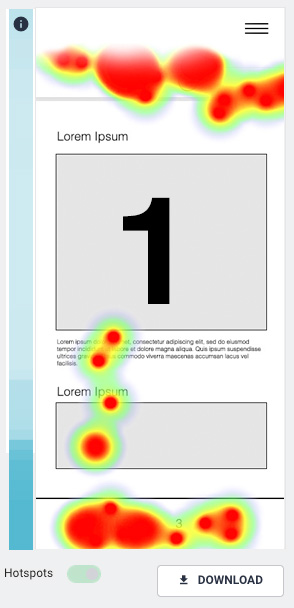
Image 1 is imported directly into Preely as a JPG. The bottom menu uses Fixed Areas.
Here, it is possible to specify the correct placement of Actions and Heatmaps.
It also shows how many scrolls finished in the area and the number of unique participants who scrolled into the area (the blue bar).
2. Prototype in Figma
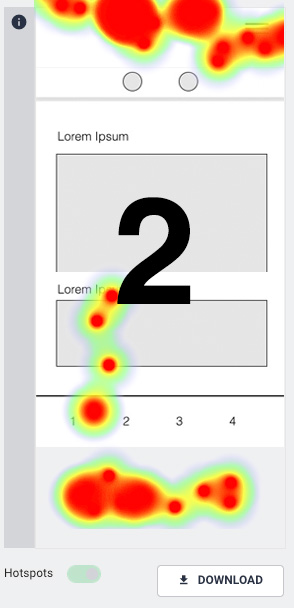
Image 2 is the same image but created using Overlays in Figma.
Menus are displayed in the same position on the user’s device, but the interaction tracking appears misaligned.
The scroll heatmap is not supported for prototypes imported via a Figma link.
Recommendation
If the correct placement of Heatmaps and Actions is important, our recommendation is to build the prototype in Figma using images without components or overlays in Figma or build it directly in Preely. This provides better control over Settings, Advanced Endpoints, Forms, and Fixed Areas.
It is quick to create an interactive prototype in Preely for a navigation test using individual images in JPEG format.